
g.co/playcontinue: What It Is, Why It Appears, and How to Use It Safely
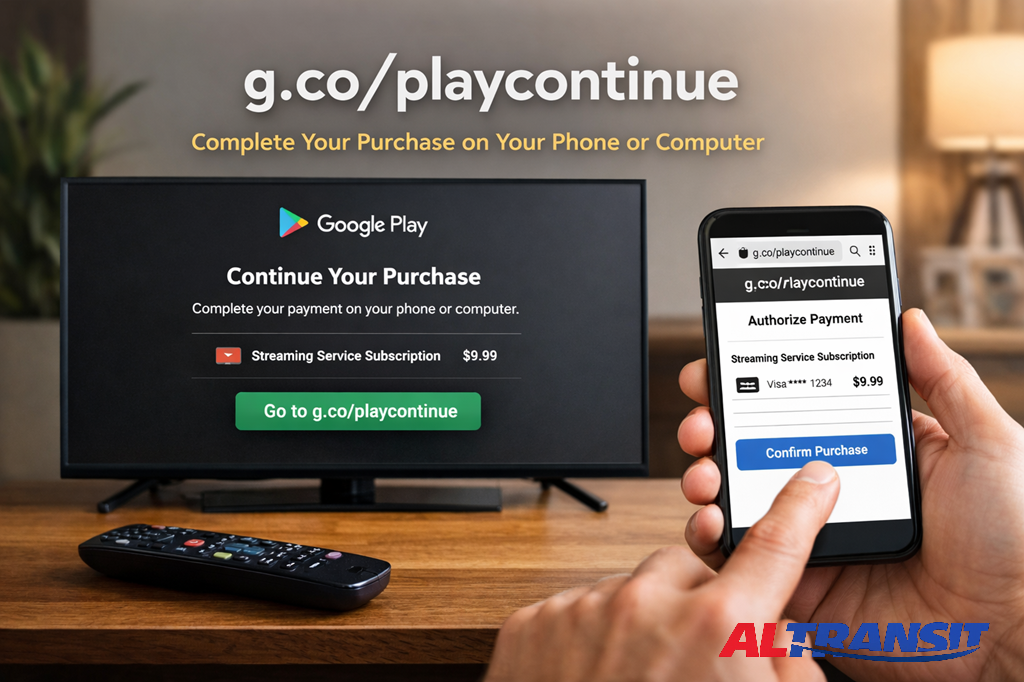
g.co/playcontinue is an official Google link used to complete Google Play purchases or subscriptions on a phone or computer when a TV or streaming device cannot finish the transaction.
It most often appears during purchases started on Android TV, Google TV, Chromecast, or similar devices with limited input. The link securely transfers the final steps, such as payment confirmation or account verification, to a device better suited for them.
This behavior is part of Google’s documented payment and device-handoff system and is not triggered randomly.
What g.co/playcontinue Means in Everyday Use
At a practical level, g.co/playcontinue exists to move sensitive actions to the right screen.
Televisions and streaming devices excel at playback. However, they struggle with tasks that require typing passwords, approving bank prompts, or updating billing details. When Google detects one of these steps, it pauses the transaction and asks you to continue on your phone or computer.
The link connects directly to services operated by Google, specifically the Google Play ecosystem. It commonly involves devices running Android TV or Google TV.
Why Google Uses the g.co/playcontinue Link
Google designed g.co/playcontinue to address real usability and security needs.
Security and verification
Some payment methods require additional confirmation, such as bank approval or two-step verification. TVs cannot safely manage these steps. Moving them to a personal device helps protect your account and payment information.
Clear account ownership
Many households share one TV across multiple Google Accounts. The continuation step confirms which account completes the purchase and receives access.
Better usability
Typing card numbers or passwords with a remote is slow and error-prone. A phone or computer offers a keyboard, biometric options, and a clearer interface.
When You Are Most Likely to See g.co/playcontinue
You will usually see this prompt when:
- Buying an app, game, or subscription on Android TV or Google TV
- Subscribing to a streaming service through a TV app
- Selecting More payment options during checkout
- Having an insufficient Google Play balance
- Needing extra verification from a card, PayPal, or bank
- Updating an expired or declined payment method
In each case, the TV pauses and instructs you to finish the process elsewhere.
How to Use g.co/playcontinue Step by Step
Step 1: Open the link manually
On your phone or computer, type g.co/playcontinue directly into the browser address bar.
Step 2: Sign in with the matching Google Account
Use the same Google Account that is active on your TV or streaming device. This connection is essential.
Step 3: Review the device handoff screen
Google redirects you to a secure Google Play continuation page showing the pending transaction and device.
Step 4: Confirm the transaction
Choose or verify your payment method and approve the purchase. Once confirmed, the original device completes the action automatically.
What Happens After You Confirm
After successful completion:
- The app installs or unlocks on your TV
- The subscription activates
- The charge appears in your Google Play payment history
- A confirmation email arrives from Google
If the TV does not refresh immediately, reopening the app or restarting the device usually resolves it.
Common Issues and Practical Fixes
Blank or empty page
You are likely signed into the wrong Google Account. Switch accounts or open the link in a private browser window.
Automatic redirects
Redirects to a Google Play device handoff page are normal and expected.
No prompt appears on your phone
Open the Google Play Store app and check Offers and notifications for a pending action.
Purchase does not finalize
Sign out of the Google Account on the TV, sign back in, and restart the transaction.
Is g.co/playcontinue Safe?
Yes. g.co/playcontinue is a legitimate Google-owned URL.
Safe use still depends on good habits:
- Type the address manually
- Confirm the page belongs to Google before signing in
- Never share passwords or verification codes
- Avoid third-party services claiming to fix Google payment issues
If anything feels rushed or unclear, stop and review your Google Account directly.
What g.co/playcontinue Is Not
To avoid confusion:
- It is not a free code generator
- It is not Google customer support
- It is not required for every Google Play purchase
- It does not store payment details on your TV
Its only role is to securely finish an active transaction started on another device.
Why g.co/playcontinue Reflects a Bigger Shift
g.co/playcontinue highlights Google’s focus on cross-device continuity.
Users move between screens constantly. Allowing a purchase to start on a TV and finish on a phone reduces friction, lowers error rates, and improves trust. Over time, this design supports safer payments and clearer account control.
Final Thoughts
Seeing g.co/playcontinue can feel unexpected, especially when it interrupts a purchase on a TV. Once you understand its purpose, the experience becomes predictable and reassuring.
It is a secure bridge between your TV and personal device, designed to protect your account while simplifying transactions. When used correctly, it completes Google Play purchases smoothly and reliably.
FAQs About g.co/playcontinue
What is g.co/playcontinue used for?
It completes a Google Play purchase or subscription on a phone or computer when the original device cannot handle payment or verification steps.
Is g.co/playcontinue an official Google link?
Yes. It is an official Google shortcut that redirects to a secure Google Play continuation page.
Why does my TV ask me to go to g.co/playcontinue?
Your TV needs you to verify identity, confirm payment, or update billing details on a device with secure input options.
Can I use g.co/playcontinue on an iPhone?
Yes. Any modern browser, including Safari on iPhone, works if you sign in with the correct Google Account.
Read More | https //www.microsoft.com /ink | Official Guide to Microsoft Ink